Uluer Solutions · macOS only
From the clock to the Apple logo.
Flightbar watches the air around you. When an aircraft enters the radius you chose, an icon appears in the menu bar and flies from the clock to the Apple logo. The pointer stops it, and the flight card opens.

How it works
Click the aircraft icon in the menu bar to open the menu. If location access is missing, the status line says so.
-
Location and range
On first launch, allow location access. Keep precise location on; distance is calculated from it. If it is off, turn Flightbar on in System Settings → Privacy & Security → Location Services.
-
From the clock to the logo
When an aircraft in the air enters the radius, the icon leaves the clock, travels along the menu bar, and arrives at the Apple logo.
-
The card
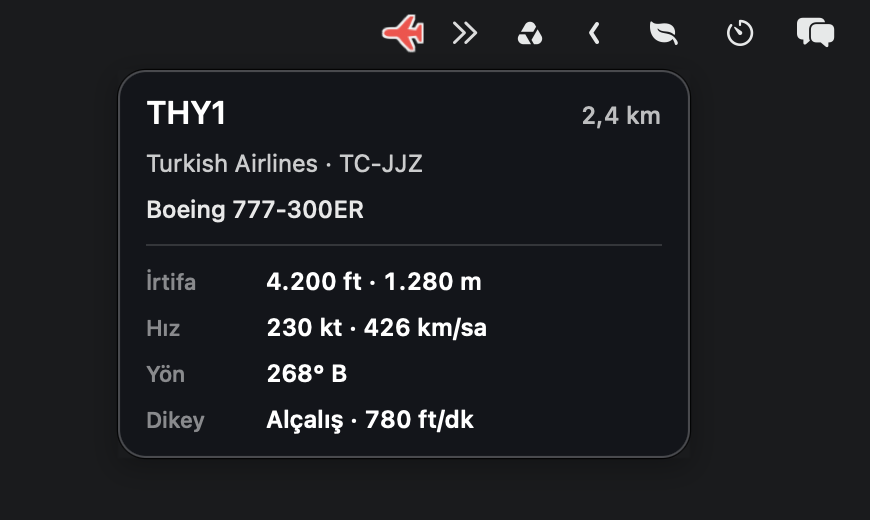
Move the pointer onto the icon. The flight pauses. The card shows the callsign, airline, registration, aircraft type, distance, altitude, speed, heading, and whether it is climbing or descending.
-
The menu
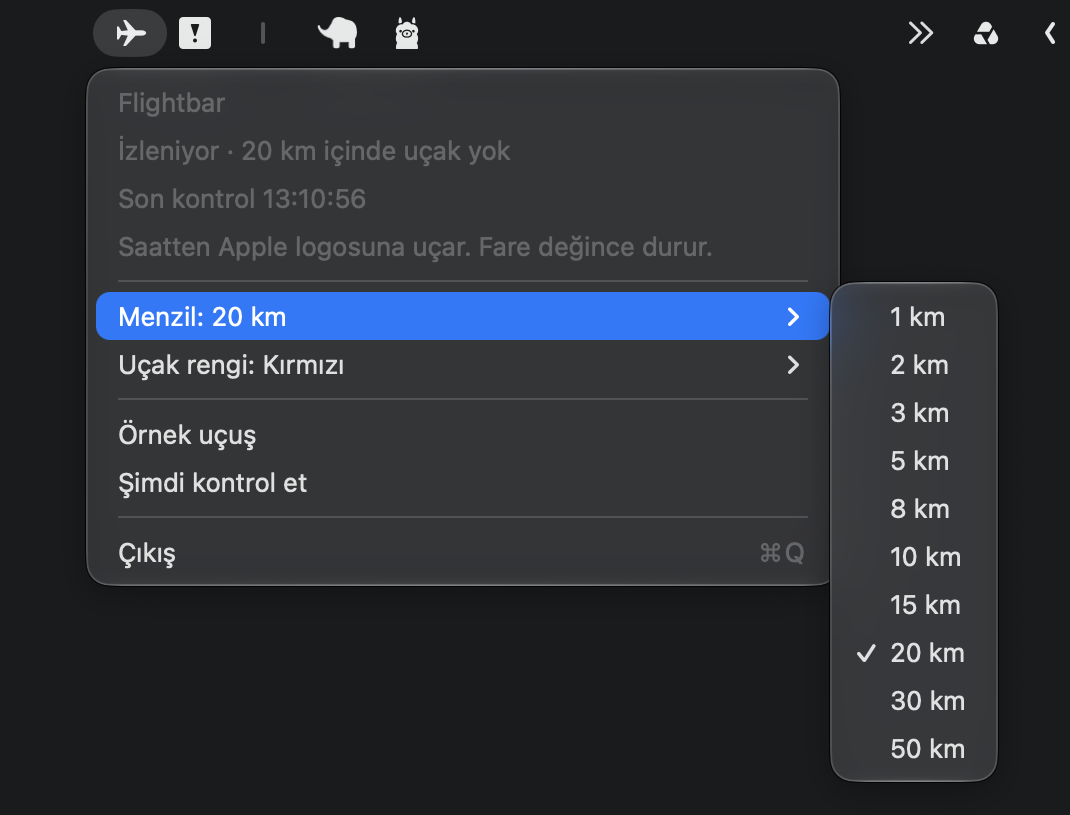
Change the range and aircraft color here. Sample flight shows a flight without waiting. Check now refreshes the data. Quit closes the app.
On screen
The images were taken from the running app. The icon color and the range follow the choice in the menu.

Range and color
Both change from the menu. The choice is remembered.
Range
The radius an aircraft has to enter. The default is 3 km.
- 1 km
- 2 km
- 3 km
- 5 km
- 8 km
- 10 km
- 15 km
- 20 km
- 30 km
- 50 km
Aircraft color
The color of the icon in the menu bar. The default is white.
- White
- Yellow
- Orange
- Red
- Green
- Cyan
- Blue
- Purple
Privacy
-
Location stays on this Mac
Your location is not sent to a server. Distance is calculated on this Mac, between your position and the aircraft.
-
Public flight data
Aircraft are read from adsb.lol. If that does not respond, adsb.fi is used. There is no account, sign-up, or key.
-
Names stay local
Airline and aircraft type names come from the catalog inside the app. It does not connect to another account.